Early access · Release date: October 7, 2019
UpdatedMX Bikes Tracks Guide: Install Mods and Ride Better
Use this MX Bikes tracks guide to install custom tracks, choose new layouts, practice cleaner corner entries, and get ready for online motocross racing.
Jump to
How to Install Custom Tracks in MX Bikes
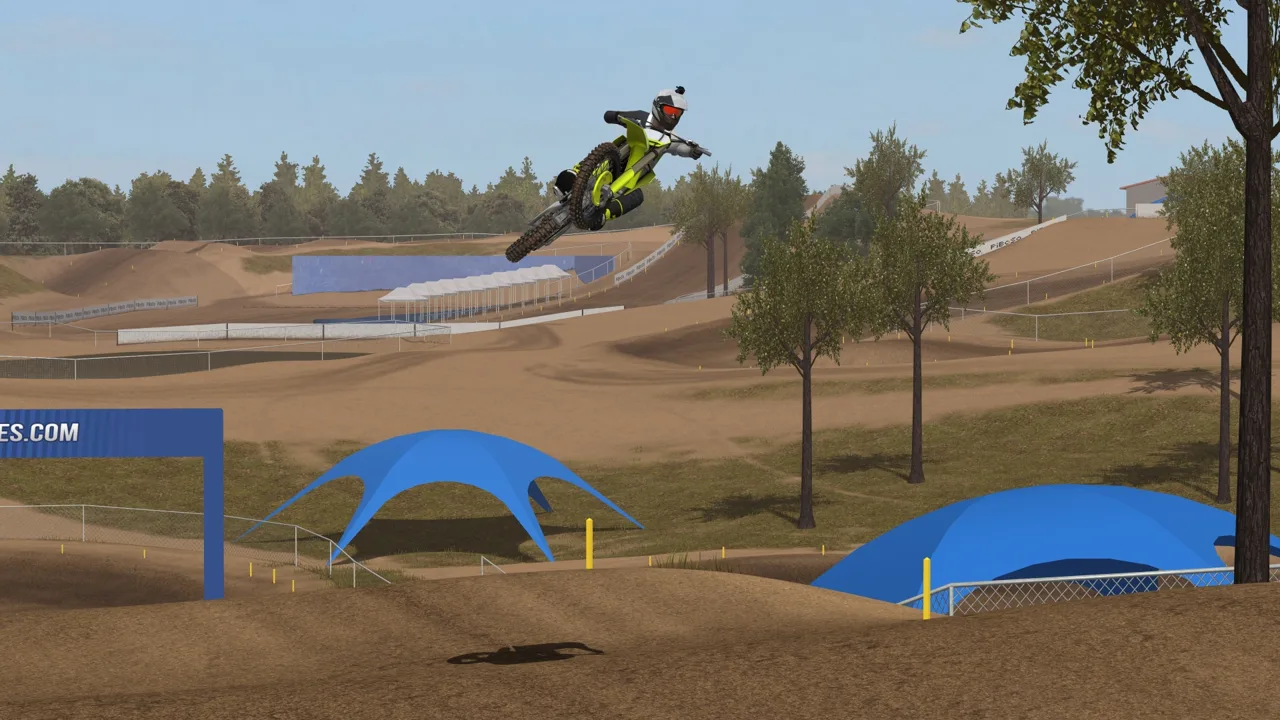
A new track gives you more than another set of jumps—it gives you different corners and lines to learn. This MX Bikes tracks guide walks you through installing custom layouts, choosing tracks to practice, and preparing for multiplayer. Start by putting the downloaded track files into the correct mod folder.
For a motocross track packaged like the installation example, follow these steps:
- Download the track archive. Open the track’s download page and download its files.
- Extract the downloaded archive. Use 7-Zip or WinRAR to unpack the ZIP or RAR download.
- Locate your user mod directory. Find the
PiBoSofolder, openMX Bikes, and then openmods. - Open the track destination. Go into
tracks, then theMotocrossfolder for the motocross layout. - Copy the track packages. Open the extracted download folder and move its
.pkzfiles into that destination. - Load the layout in-game. Open
Race, chooseHost World, continue to track selection, select the installed layout, and start the session.
Extract the download archive to reach the .pkz files. Those packages are the files you place in the track folder; the archive you downloaded is the outer container.
Keep the installation focused on the content you downloaded. Track packages belong under tracks; bike and rider mods use separate folders.
Official page: MX Bikes (mx-bikes.com)
Choose Tracks That Expand Your Riding
Walnut Farm, Pita V2, and Mouse Moto Park are examples of layouts to explore when getting started. Use familiar tracks to learn the bike, then branch out instead of repeating the same small rotation indefinitely.
When choosing another download, look beyond whether you recognize its name:
- Try a different layout to practice unfamiliar corner entries.
- Explore other free tracks before settling into a permanent rotation.
- Add pro tracks when you want to challenge your line choice and jump execution.
Free and paid custom tracks are both part of the mod scene. Choose your next layout around what you want to practice rather than buying content simply to expand your collection.
Familiarity can hide mistakes: knowing every jump lets you anticipate the lap without thinking much about your approach. On a different layout, deliberately work out where each corner starts and how its exit connects to the next straight.
Practice Corner Entries Before Whips
Speed starts before the jump face. Enter a rut at its opening rather than cutting into the middle of the corner, and focus on carrying that line through the exit.
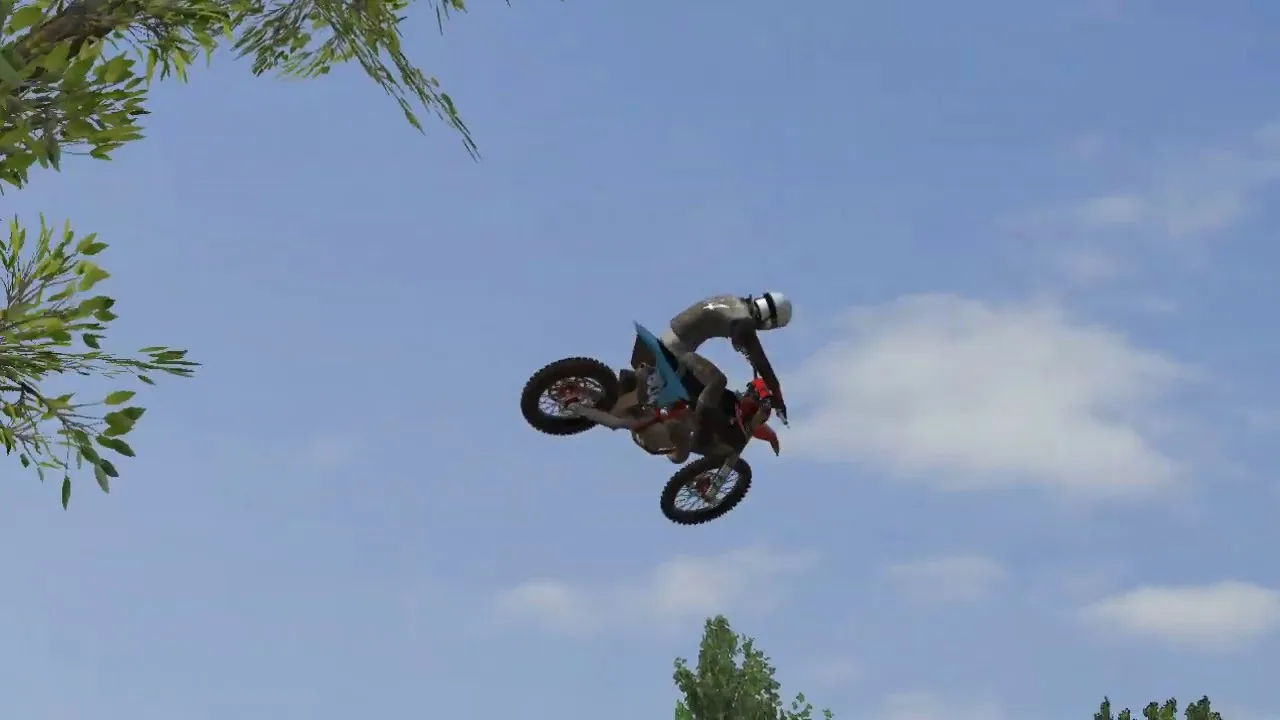
A cleaner entry helps you preserve speed through the turn and onto the straight. That exit speed affects how you approach the following jumps, so work backward from a difficult section: examine the corner feeding it before changing everything you do in the air.
During practice:
- Find the intended corner entry. Approach the beginning of the rut instead of joining it halfway through.
- Follow the line through the exit. Focus on connecting the turn to the straight.
- Clear the following jumps cleanly. Practice getting across without adding a whip every time.
- Add style after the line works. Keep dedicated practice time for straightforward laps.
MX Bikes simulates motorcycle dynamics, terrain deformation, and wet terrain. Give the ground and your approach as much attention as the jump itself.
Set Up Your View for Learning Layouts
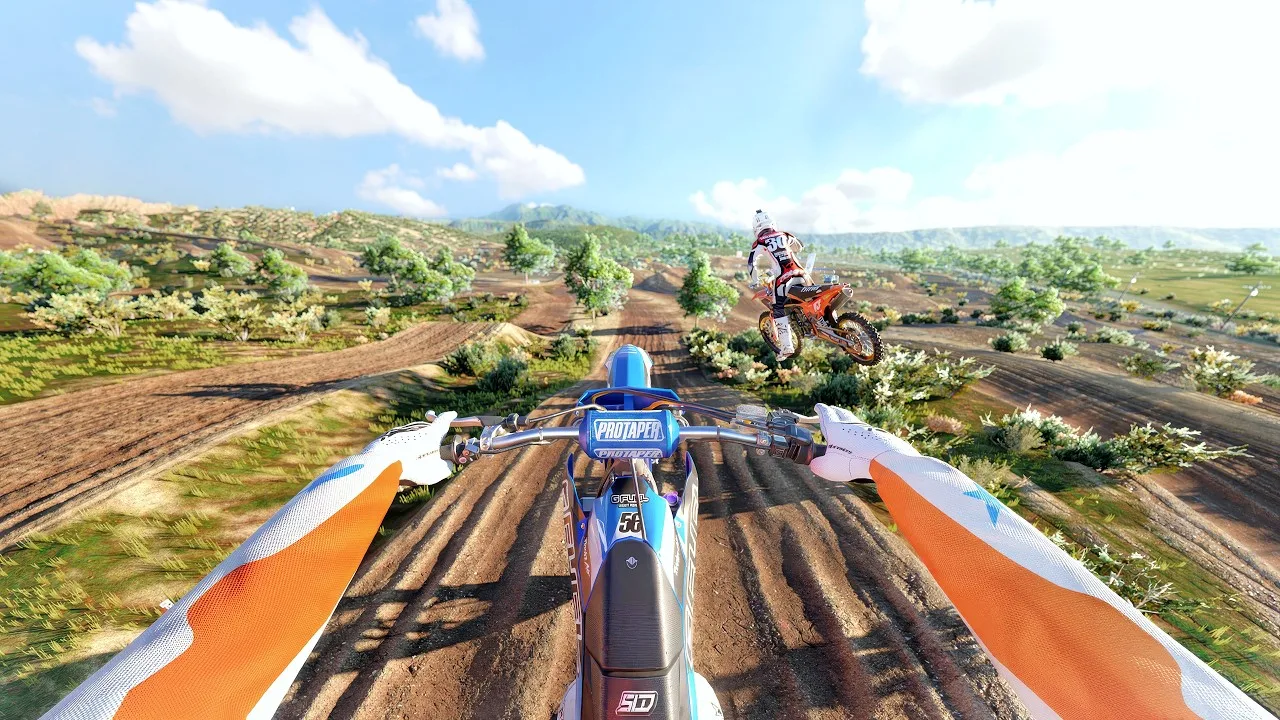
If you ride in first person, try both onboard cameras. Press V to cycle views and select Dynamic Onboard to try an alternative to Static Onboard.
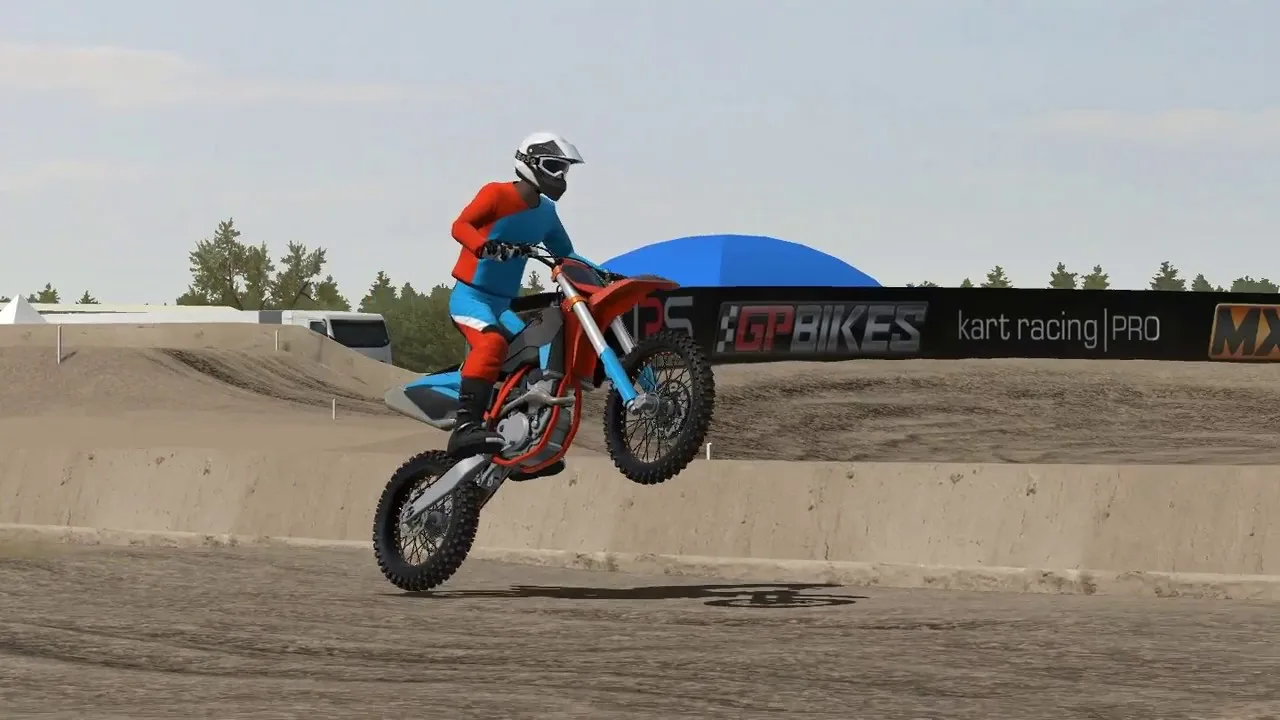
You can also adjust the cockpit view:
- Press Shift+C to enter camera adjustment.
- Use the arrow keys to adjust the view forward or backward.
- Press Shift+C again to access vertical adjustment.
Tilt changes how much the camera rotates as you turn. Try adjusting it while practicing corners to find a view you can read comfortably.
Keep your attention on the upcoming entry and exit. Use camera adjustment to help you follow the track while you learn its shape.
Prepare Your Track and Bike Mods for Multiplayer
Before choosing a session, keep these play options in mind:
- Practice layouts in single-player.
- Race other riders through Online PvP or LAN PvP.
- Use the Windows version for the track installation steps above.
Track files and bike files are separate installations. For a lobby running OEM bikes, install the required OEM motocross bike pack as well as the track. Extract the bike download and its player-version archive, then place the included bikes and tyres folders inside mods.
Match your installed content to the session you intend to join. Having a track installed does not supply the bike pack used by that lobby.
Look for the D indicator in the server browser to identify dedicated servers. Prefer those when choosing where to ride; they typically offer a more reliable connection than a player-hosted session. Load a newly installed layout locally before heading online so you can confirm that you can select and ride it.
Continue with
 MX Bikes Map Mod: How to Install Tracks and FreerideFind an MX Bikes map mod, install custom tracks in the right folder, and fix loading issues. Explore motocross layouts, compounds, and freeride terrain.
Continue exploring
Join the community
Official channels for news, updates and player help: